How long do phones last, and when should you upgrade?
Update support, battery wear and the signs that a phone has reached the end. A plain way to decide.
13 October 2026 · The NexCell team
Step-by-step transfers between iPhone and Android, plus the things people forget: WhatsApp, authenticator apps and eSIM.
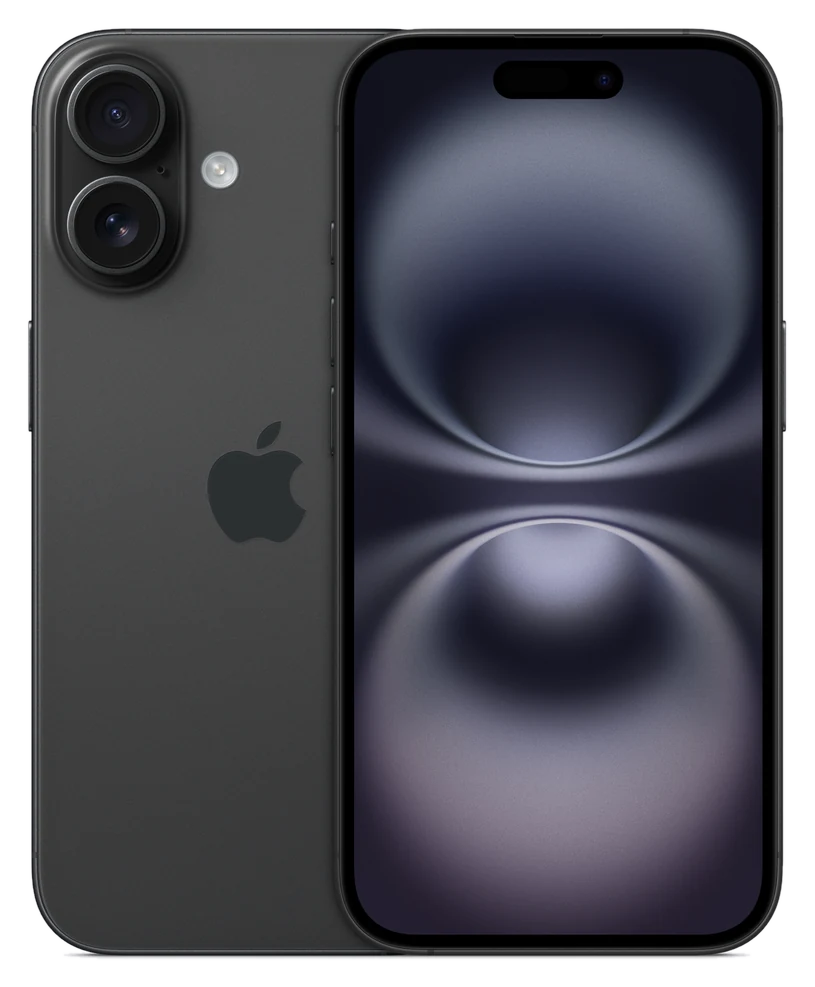
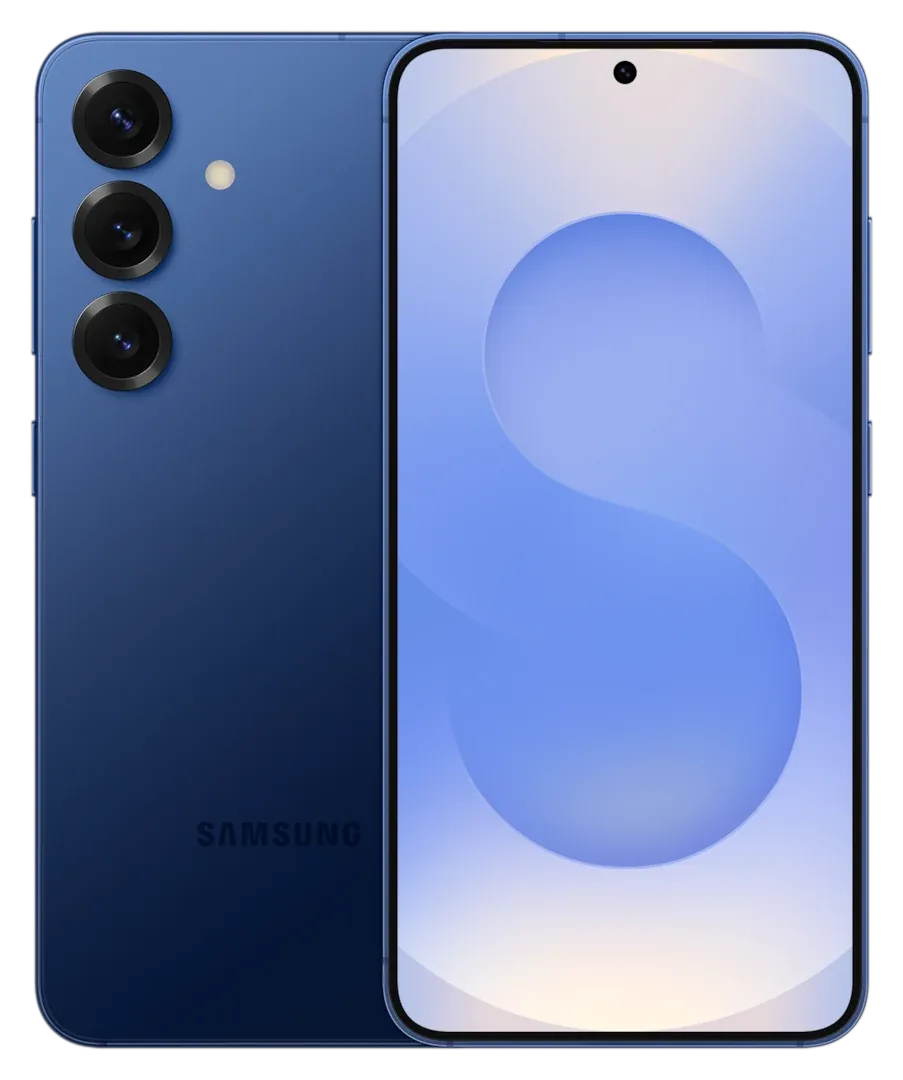
use the built-in tool for your pair of phones, keep both on Wi-Fi and charged, and do not wipe the old phone until you have checked the new one. Setup takes 30 to 60 minutes for most people. The tool you need depends on where you are moving from and to.
Switch on the new iPhone and bring it close to the old one. Quick Start appears on the old phone; confirm it and scan the animation with the old phone's camera. You can then transfer directly between the phones, or restore from an iCloud backup. Direct transfer keeps most app logins and settings, and is the fastest option when both phones are in front of you.
During setup on the iPhone, choose the option to move data from Android. Install Apple's Move to iOS app on the Android phone, enter the code the iPhone shows, and choose what to bring across: contacts, messages, photos, videos, calendars and email accounts. Music, books and PDFs need to be moved separately, and paid apps may need buying again on iOS.
On a Samsung, use Smart Switch. You can connect with a USB-C cable for speed, or use Wi-Fi. For other Android phones, Google's own set-up tool can copy from an iPhone. Before you move your number, switch off iMessage and FaceTime on the old iPhone, so texts from other iPhones are not held back.
Smart Switch handles it. Put the phones next to each other, open Smart Switch on both, and follow the prompts. It carries across apps, messages, settings and the home screen layout.
Use the new phone for a couple of days with the old one switched off but not wiped. If everything is where it should be, sign out of your accounts on the old phone and reset it. That gives you a way back if something is missing.
From 10 minutes to over an hour, depending on how much is on the phone and the connection speed. A cable is faster than Wi-Fi.
Between phones of the same system, apps come across. Between iPhone and Android, apps are redownloaded from the store and paid apps may need to be bought again.
Keep it for a week or so. After that, wipe it and either sell it or recycle it.
Update support, battery wear and the signs that a phone has reached the end. A plain way to decide.
What the terms mean in the UK, whether a SIM-free phone works on every network, and how to check a phone is unlocked.
What to look at on the seller, the listing and the payment so you know the phone will arrive, work and be returnable.
Browse the phones and accessories covered in this guide.